If you’ve ever printed more than one copy of a document, you’ve probably noticed a small checkbox that says “Collate.”
Many people see it and ignore it—until they end up with a messy pile of pages completely out of order. 😅
So, what does collate mean when printing, and why does it matter?
Understanding this one simple setting can save you time, prevent mistakes, and help you print documents that look organized and professional.
If you’re printing worksheets, business reports, presentations, or booklets, collating ensures your pages come out exactly the way you want.
Quick Answer:
Collate means arranging printed pages in the correct order so each copy of a multi-page document comes out as a complete set.
Once you understand this, printing becomes faster, smoother, and a whole lot less stressful.
What Does Collate Mean When Printing? (Definition)
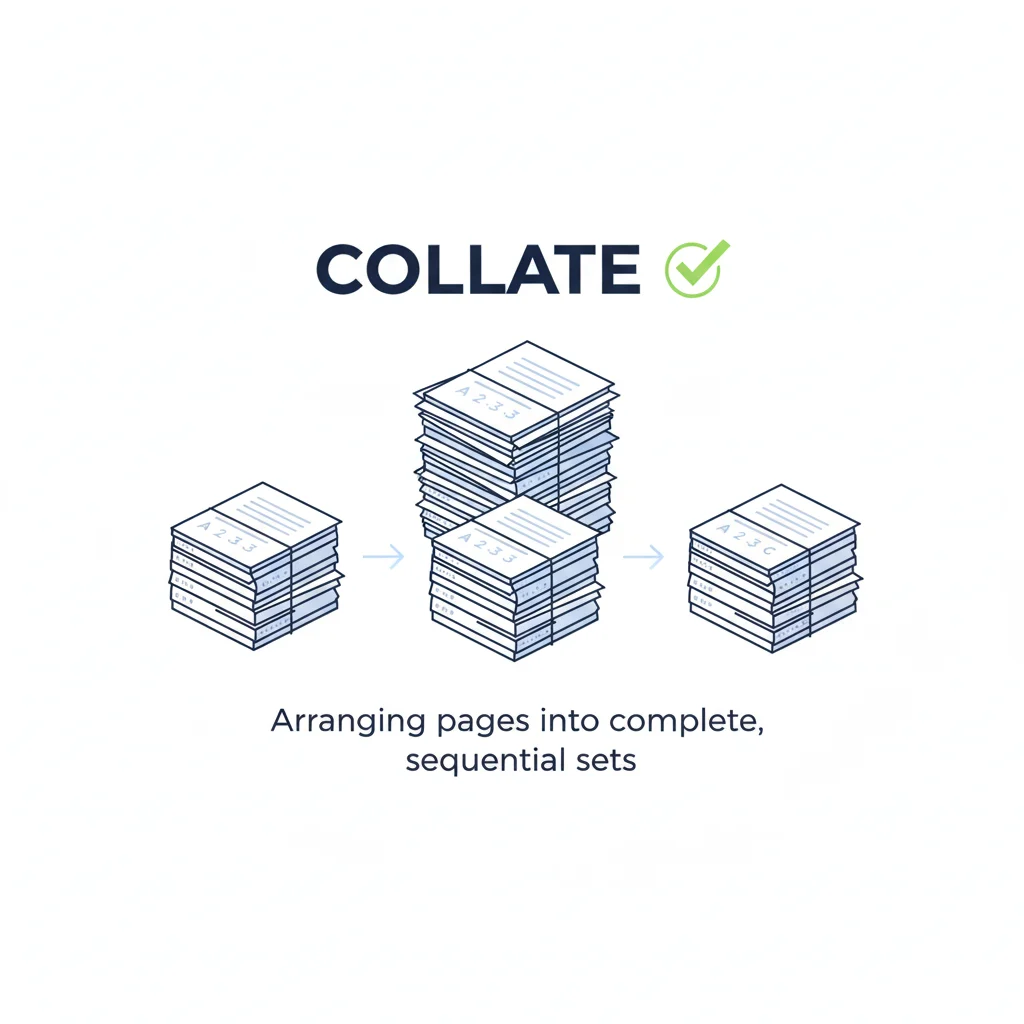
Collate refers to printing multi-page documents in sequential order, so each set is complete.
Two simple options:
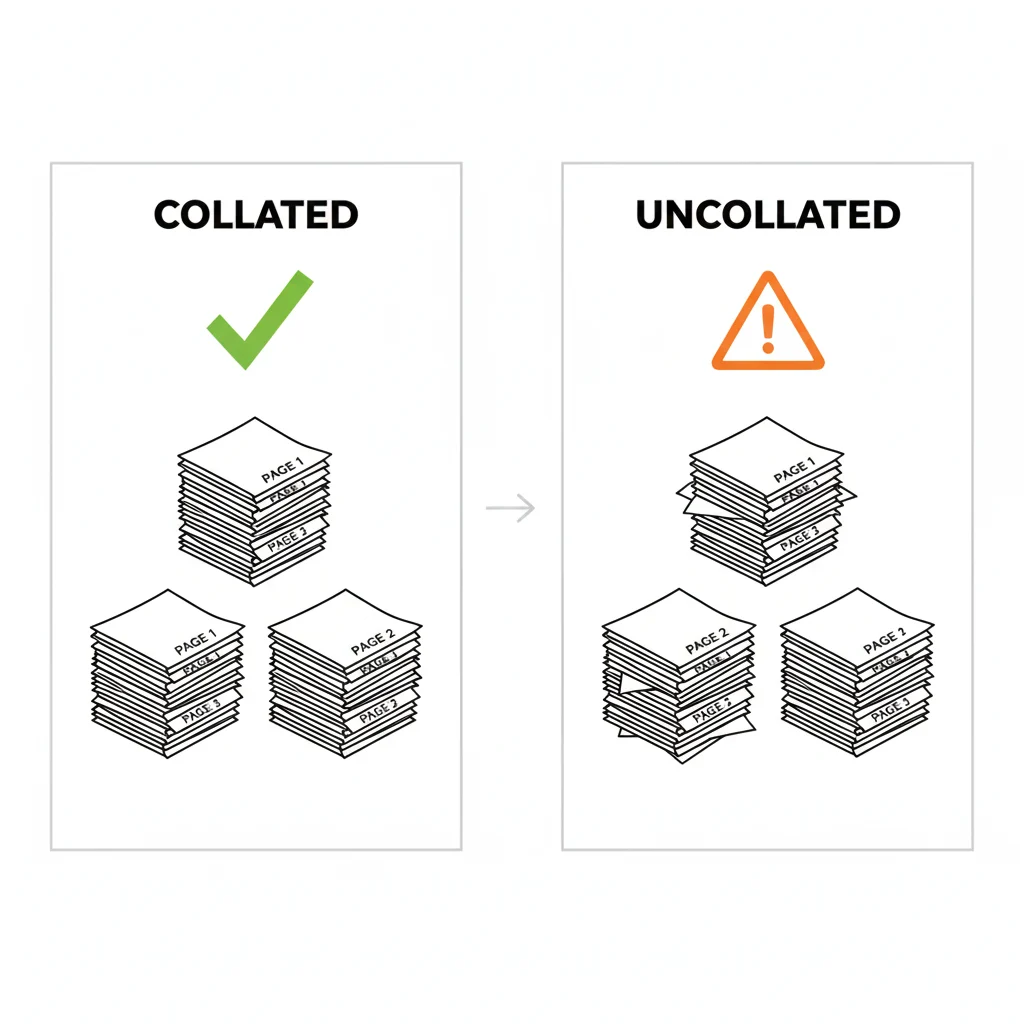
✅ Collated
Your printer prints complete sets in order:
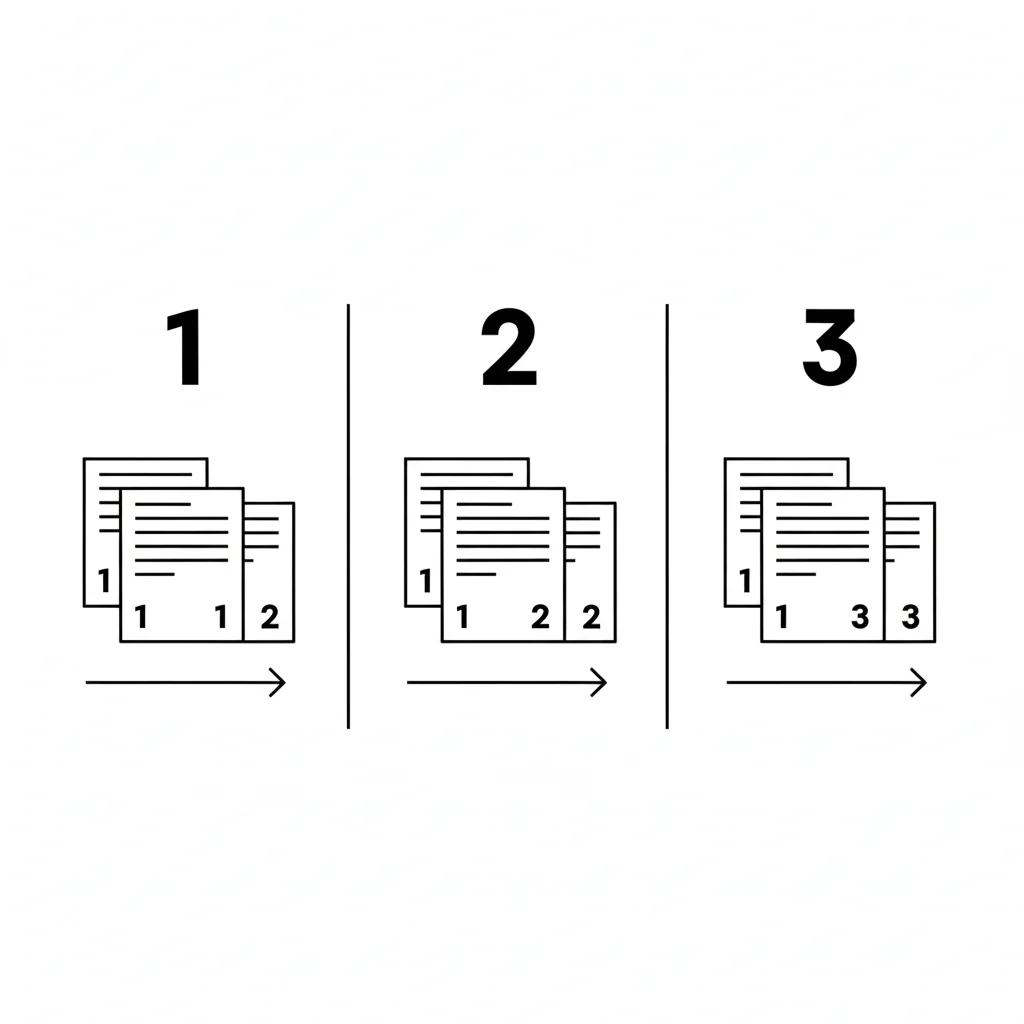
Example: Print 2 copies of a 3-page document
Output ➝
Copy 1: 1, 2, 3
Copy 2: 1, 2, 3
This is the option most people need when printing reports, homework, handouts, presentations, PDFs, or booklets.
❌ Uncollated
The printer prints all copies of each page together:
Output ➝
Page 1: 1, 1
Page 2: 2, 2
Page 3: 3, 3
This is useful only when you want page batches—like printing worksheets for a classroom.
Collated vs. Uncollated (Comparison Table)
| Feature | Collated | Uncollated |
|---|---|---|
| Page Order | Sequential (1-2-3) | Grouped (1-1, 2-2, 3-3) |
| Best For | Reports, booklets, manuals, client documents | Worksheets, forms, flyers |
| Saves Time Sorting? | Yes | No |
| Professional Look | High | Low |
| When to Use | Multiple copies of multi-page documents | When distributing individual pages |
This table helps readers visually understand the difference—which is great for SEO and user clarity.
Why Collating Matters (And When You Should Use It)

Collating is a small setting but makes a huge difference when you’re printing more than one copy.
Benefits of using collate:
- You don’t need to manually sort pages
- Saves time for large or multi-page printing jobs
- Ensures each printed set is complete
- Prevents accidental missing or mismatched pages
- Looks more professional
You should use collate when printing:
- School assignments
- Business reports
- Monthly statements
- Training manuals
- Client presentations
- E-books or booklets
- Multi-page PDF documents
When in doubt, collate usually gives you the result you want.
How Collate Works in Modern Printers
Modern printers (inkjet, laser, and digital presses) automatically handle collating using internal software.
Here’s what happens behind the scenes:
- Your document is sent to the printer as a PDF-like data stream.
- The printer reads page numbers.
- It organizes the output order based on your collate selection.
- If collate is ON, it prints full sets.
- If collate is OFF, it prints page batches.
Higher-end printers even have automatic finishing tools like:
- stapling
- hole punching
- booklet making
- binding
But collate simply arranges pages—it doesn’t staple or bind them.
A Quick Example to Understand Collating
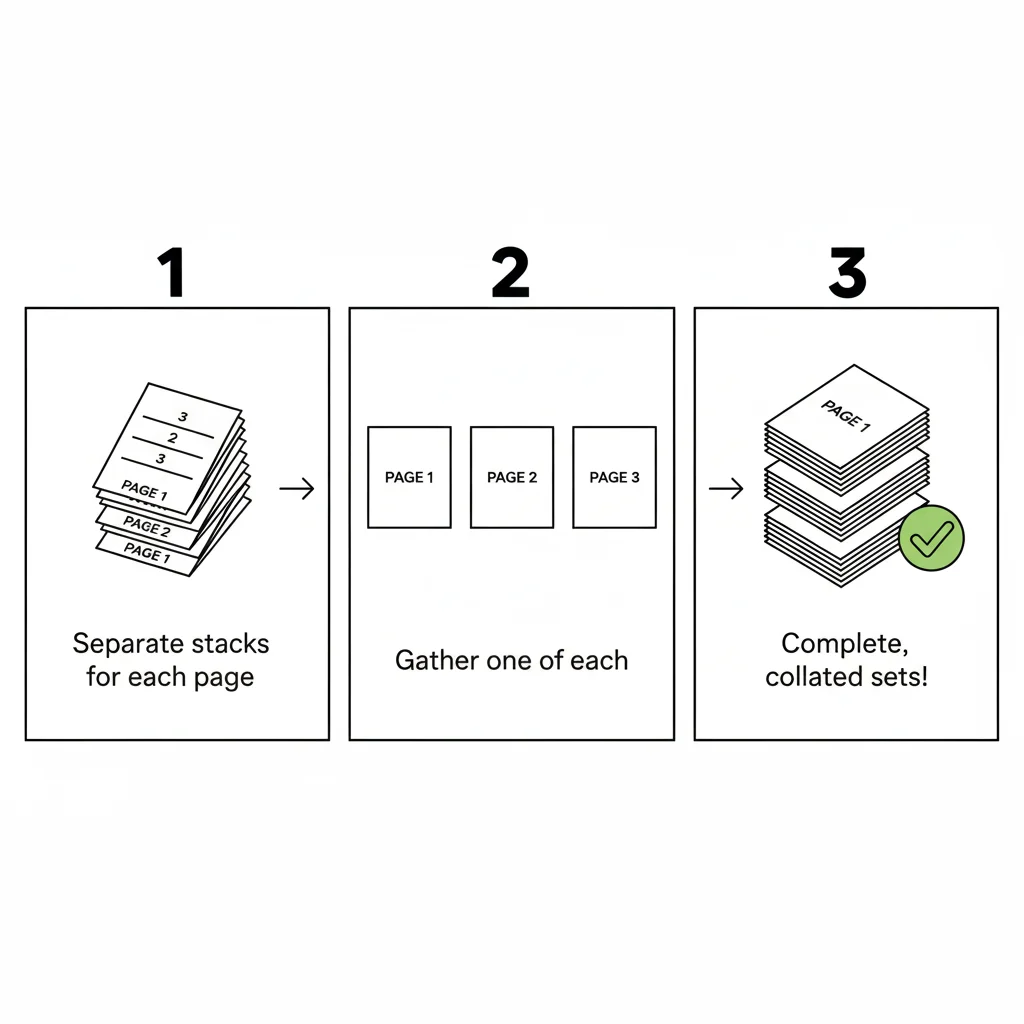
Let’s say you need to print 5 copies of a 4-page document.
Collated Printing Output:
1-2-3-4
1-2-3-4
1-2-3-4
1-2-3-4
1-2-3-4
Uncollated Printing Output:
1-1-1-1-1
2-2-2-2-2
3-3-3-3-3
4-4-4-4-4
Think of collated as sets, and uncollated as batches.
How to Turn On/Off Collate in Different Software
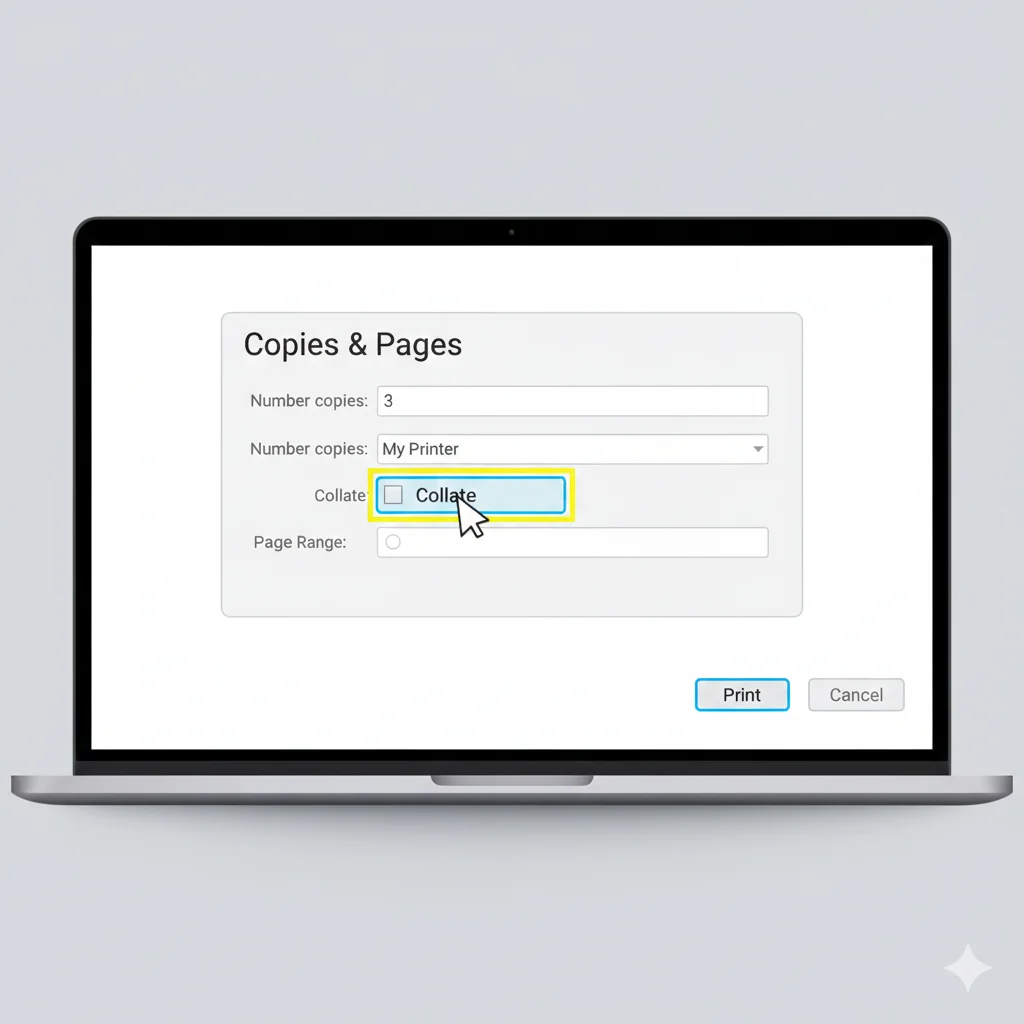
📄 Microsoft Word
- Go to File → Print
- Select printer
- Under Settings, look for the “Collate” icon
- Choose:
- Collated (1,2,3)
- Uncollated (1,1,1)
🌐 Google Docs
- Click File → Print
- In the print menu, find Pages per copy
- Check or uncheck Collate
📘 Adobe Acrobat PDF
- Open the PDF
- Click File → Print
- Select printer
- Look for Copies & Pages section
- Check or uncheck Collate
💻 Windows 10/11
- Ctrl + P
- Look for More settings
- Toggle Collate option
🍏 Mac (macOS)
- File → Print
- Expand the menu if needed
- Look for Copies → Collated checkbox
These steps help all types of users and strengthen SEO.
When Should You Use Uncollated Printing?
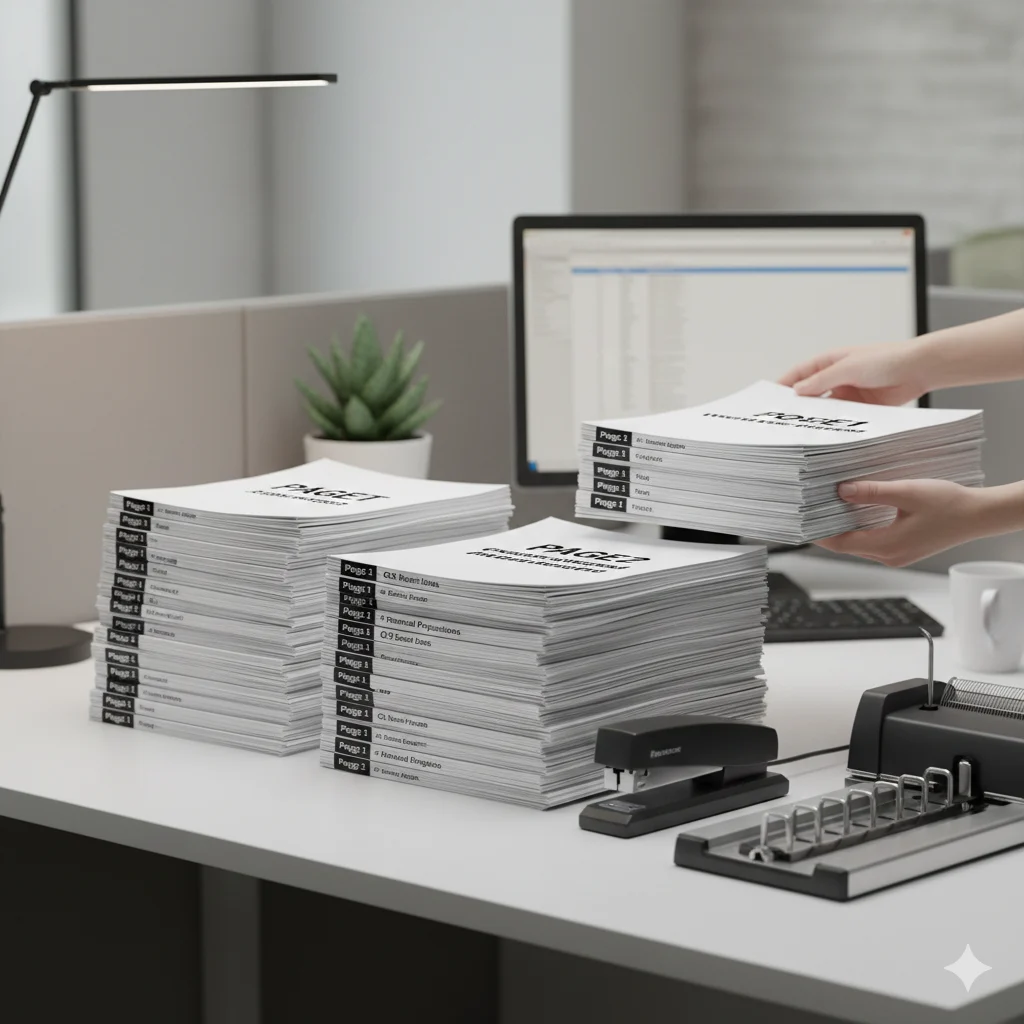
While collate is usually the best choice, uncollated printing is useful in certain situations.
Use uncollated when printing:
- Flyers to hand out
- Worksheets for a class
- Forms where each page is independent
- Posters or single-page handouts
- Printouts that don’t need page order
This gives users a complete understanding of both settings.
Common Misunderstandings About Collating
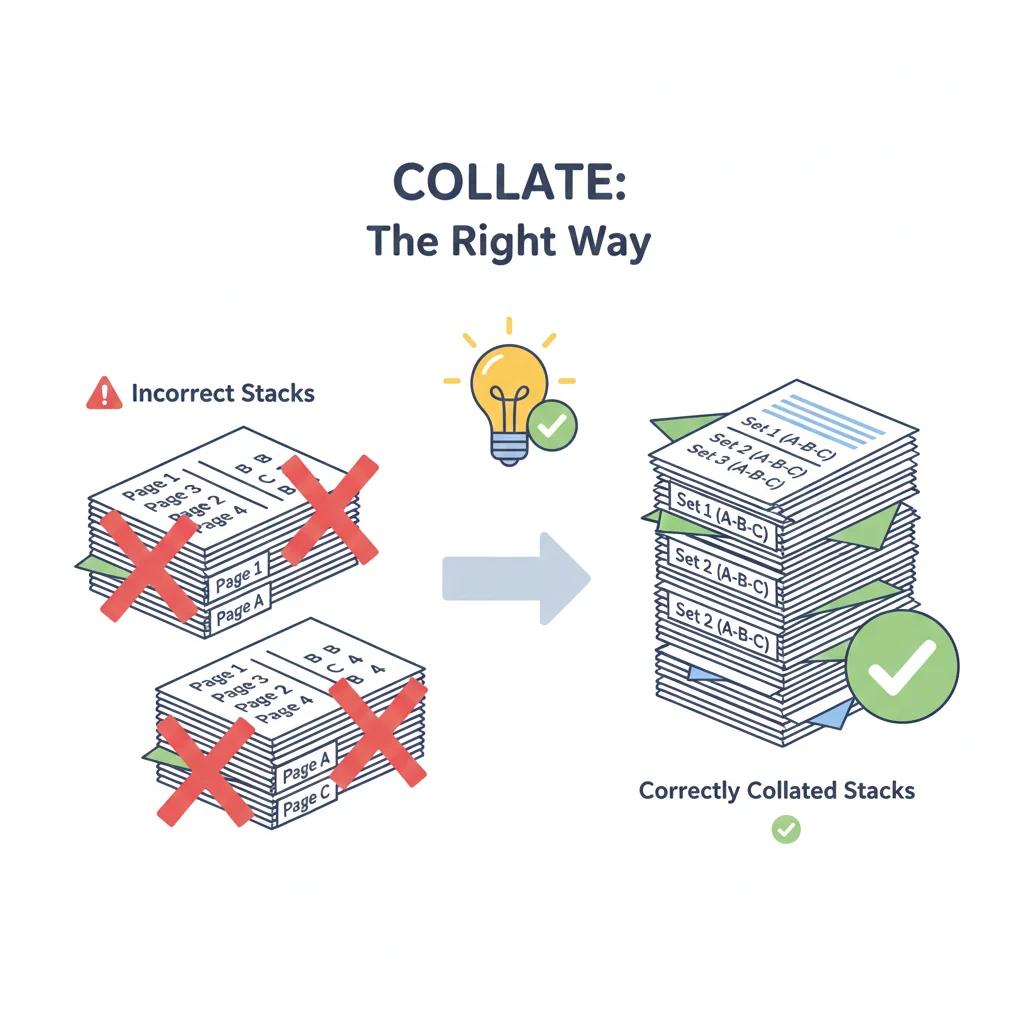
People often confuse collating with other printing actions. Here’s the truth:
❌ Collate ≠ Staple
- Collate organizes the pages
- Staple binds the pages
❌ Collate does NOT change page numbers
It only affects printing order.
❌ Not all printers support collating
Older or basic models may require manual sorting.
❌ Collated printing is NOT slower
For modern printers, it’s just a software instruction—not extra physical work.
Why Your Printer Might Not Collate (Troubleshooting)
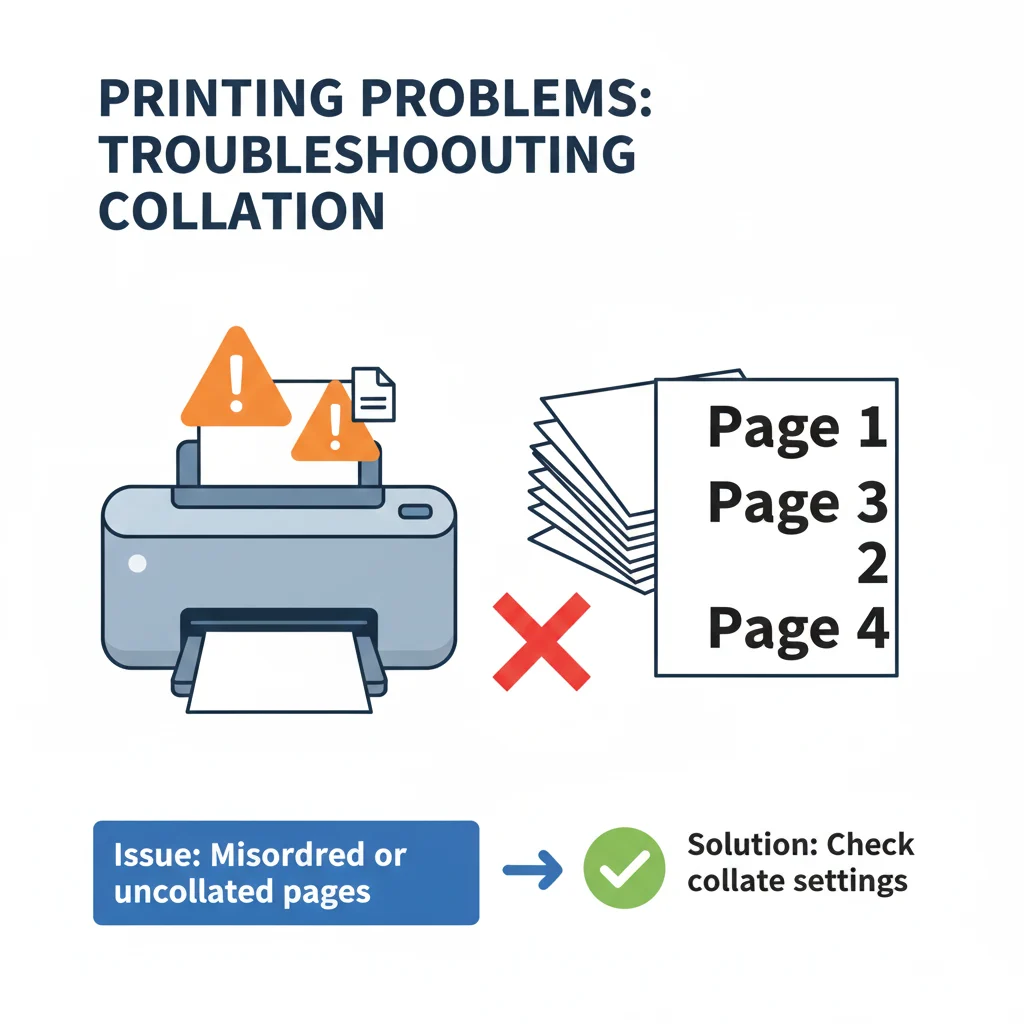
If your collate option isn’t working, these may be the reasons:
1️⃣ Printer Driver Issue
Update your printer driver.
2️⃣ Software Override
Some apps override collate settings.
3️⃣ Printer Memory Limitation
Very large documents may disable collating.
4️⃣ Unsupported Printer
Low-end printers simply don’t collate.
Fix Tip:
Print the document as PDF, then collate through Acrobat or system print settings.
Tips for Using Collate Correctly
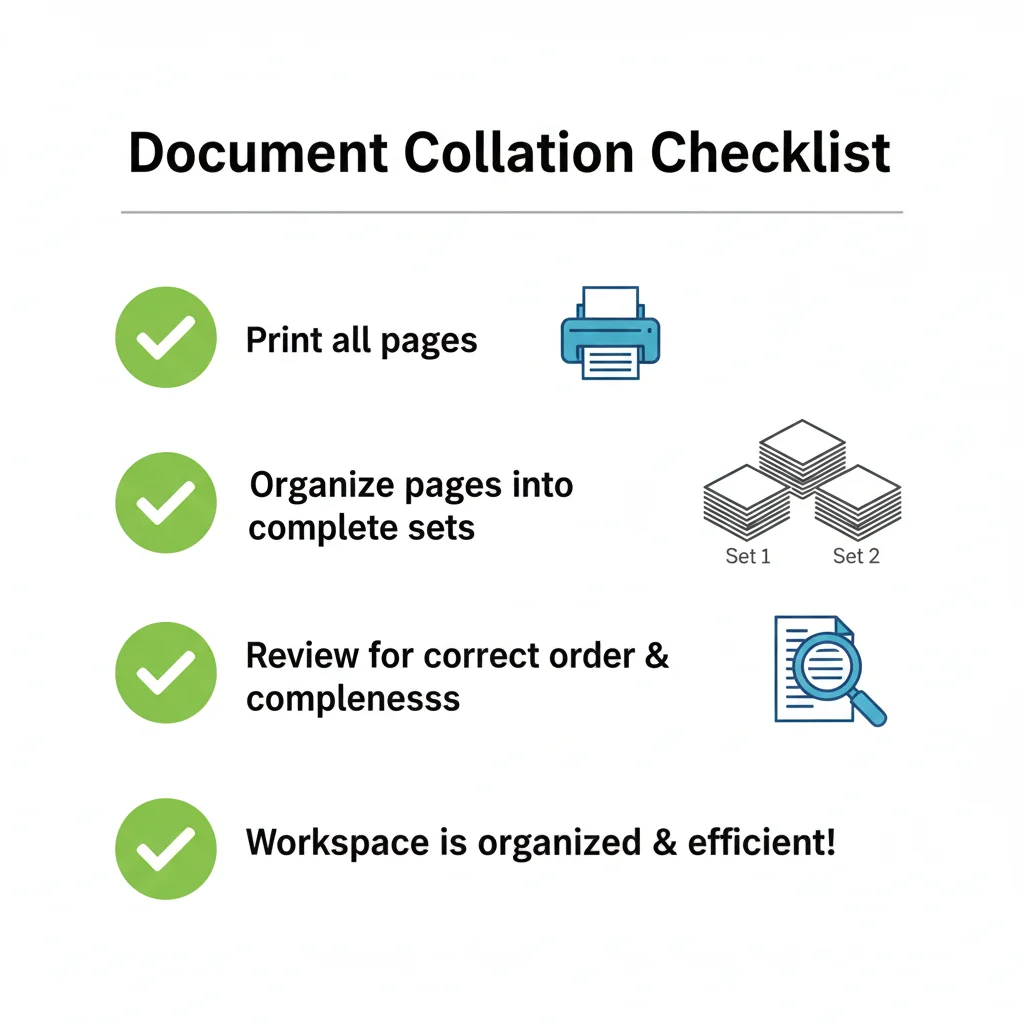
Here are simple tips to get perfect collated prints every time:
- Preview your print order before printing
- For large jobs, print a test copy first
- Avoid mixing collated printing with manual duplex
- Name your files clearly (e.g., “Report-Final-Pages-1-6”)
- If printing booklets, choose booklet mode instead of collate
These small practices make a big difference.
Origins & Meaning of the Word “Collate”
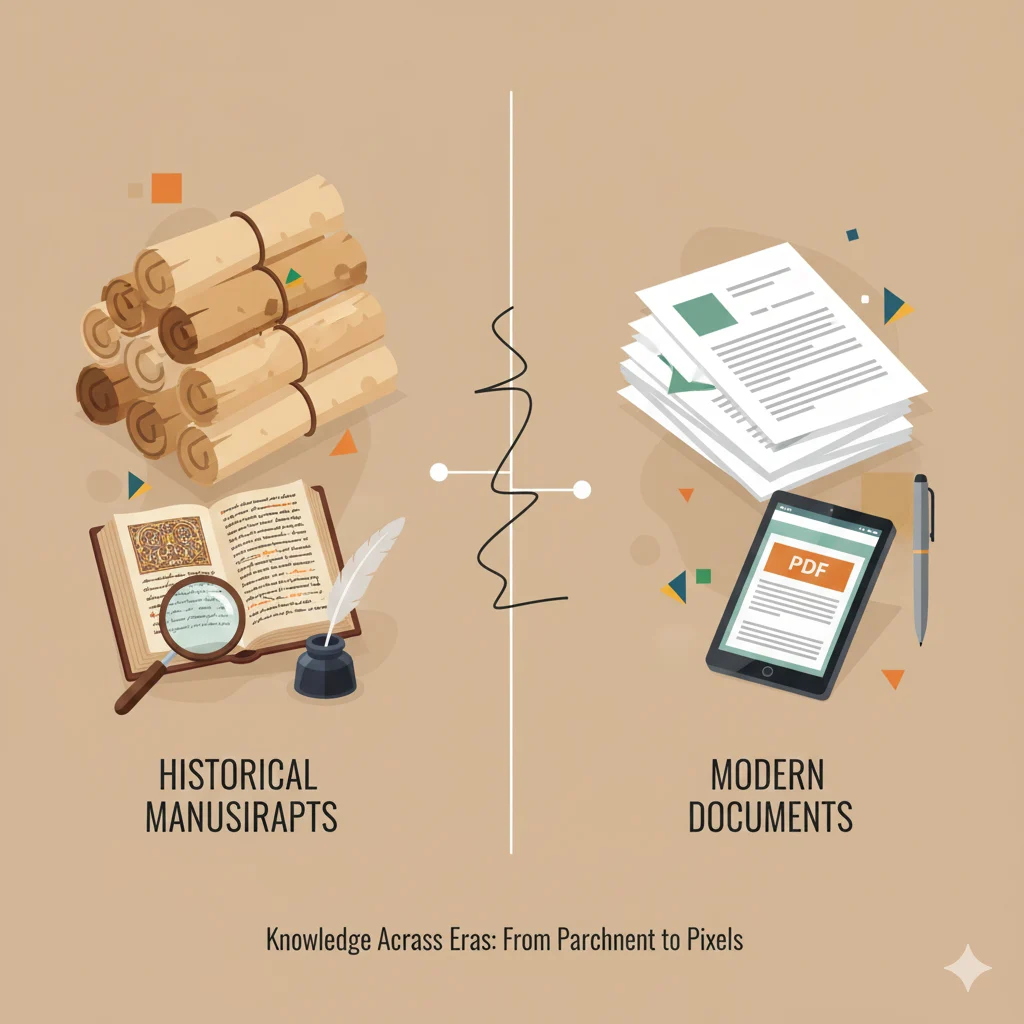
The word collate comes from the Latin “collatus,” meaning:
- to bring together
- to compare
- to assemble
It was originally used in the world of bookbinding, where pages had to be arranged manually before sewing or gluing them together. Today, printers do this automatically.
FAQs (Expanded)
Here are helpful answers to the most common questions.
1. What does collate mean when printing?
It means printing pages in the correct sequential order so each copy is complete and organized.
2. What’s the difference between collated and uncollated?
Collated prints full sets; uncollated prints grouped pages.
3. Should I use collate for single-page documents?
It doesn’t matter—both options produce the same result.
4. Do all printers support collating?
Most modern printers do, but older or basic models may not.
5. Why is collating important?
It prevents manual sorting and ensures your multi-page documents look professional.
6. Does collating slow down printing?
Not usually. Modern printers handle collating digitally.
7. Can I collate PDFs?
Yes—Adobe Acrobat, Chrome, Edge, and macOS all support collating.
8. What is reverse collating?
It prints pages in reverse order, useful for top-feeding printers.
9. Does collating affect stapling?
No. Stapling is a separate finishing option.
Conclusion
Collating is a simple printing feature, but it plays a big role in keeping your documents neat, organized, and professional.
If you’re printing school worksheets, a business report, a manual, or multiple copies of a multi-page PDF, choosing the right collate setting saves you time and effort.
Now that you understand the difference between collated and uncollated, how they work, when to use them, and how to enable them, printing becomes much easier—and far less confusing. ✔️
Always check your print preview, choose the option that fits your needs, and enjoy clean, properly ordered documents every time. 🖨️✨